- CrystalDiskInfo reads SMART data from SSDs and HDDs to show health, temperature, usage hours, and actual wear.
- For SSDs, it offers very useful information about TBW and percentage of useful life, while for HDDs it is advisable to complement it with other tests.
- The program is free, secure, can run in resident mode with alarms, and supports internal and many external units.
- Using it regularly, along with good habits and backups, helps prevent data loss due to disk failures.
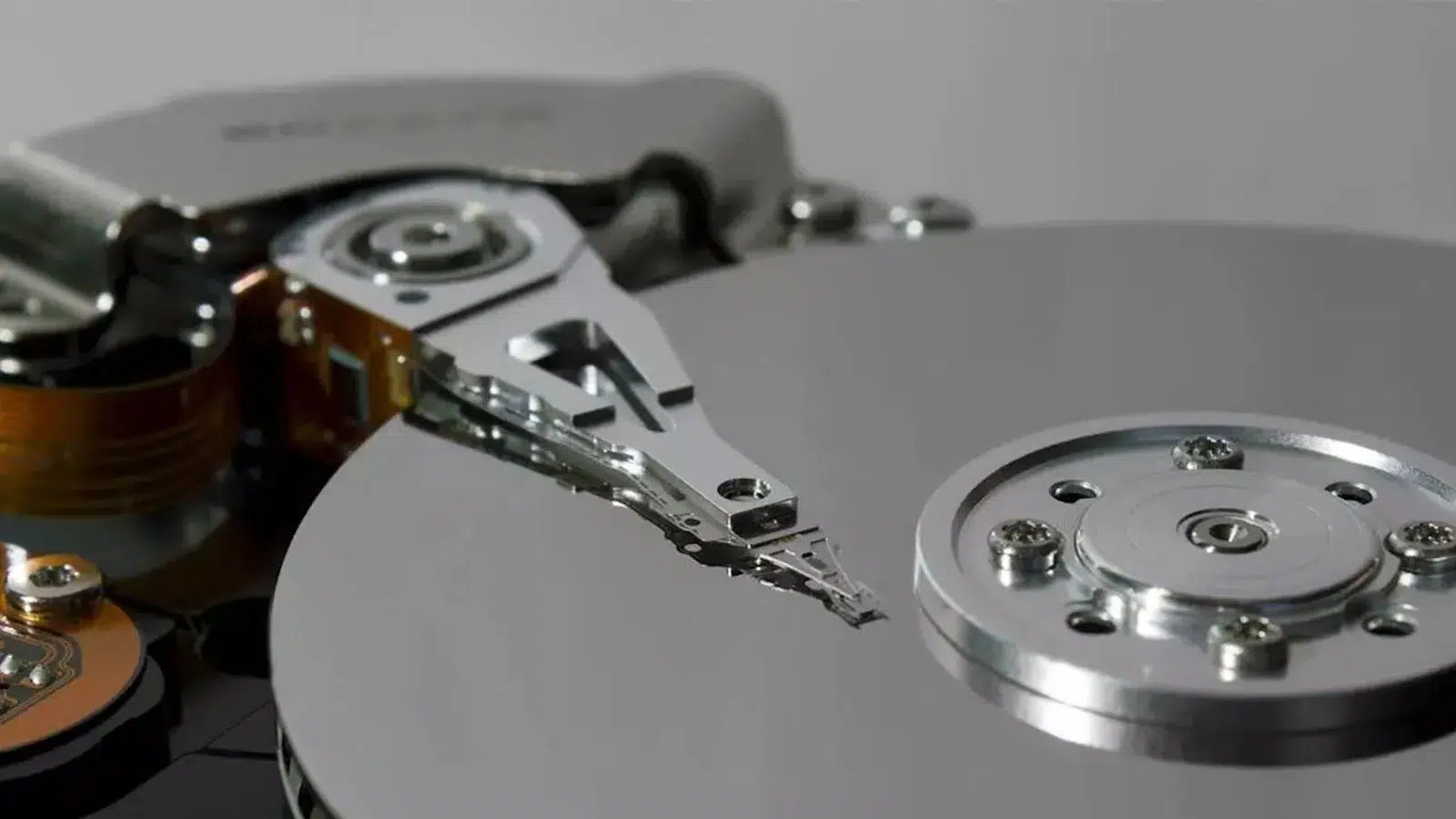
We're constantly saving more photos, documents, games, and projects on our computers, and while storage may seem limitless, hard drives and SSDs wear out and can fail . When that happens, recovering your data can be extremely expensive or even impossible. That's why it's crucial to anticipate problems and periodically check the drive where Windows and all your data are installed using hard drive and SSD diagnostic software.
A very convenient way to do this is with CrystalDiskInfo, a small, free utility that has become a classic among technicians and advanced users. This program reads the SMART data of your drives (and you can complement it with tools like wmic and smartctl ) and shows you at a glance their health, temperature, usage hours, and even the actual wear and tear of the SSD. If you want to know how to check the health of your SSD (or a traditional HDD) with CrystalDiskInfo and get the most out of it, here you'll find a step-by-step guide with all the tricks.
What is CrystalDiskInfo and what exactly is it used for?
CrystalDiskInfo is a free Windows tool developed by Crystal Dew World (Noriyuki Miyazaki) that allows you to monitor the health of mechanical hard drives (HDDs), SSDs, and M.2 drives using SMART (Self-Monitoring, Analysis and Reporting Technology). This technology is integrated into virtually all modern drives and internally logs errors, temperatures, usage hours, and other key parameters.
The beauty of the program is that it translates that avalanche of numbers into something understandable: an overall health indicator (Good, Caution, or Bad), the current temperature, and a detailed list of SMART attributes . In the case of SSDs, it also reports the estimated percentage of remaining lifespan and the TBW (Terabytes Written), that is, the total amount of data written over its lifetime.
Another important advantage is that CrystalDiskInfo works with most internal drives and many external USB drives , provided they correctly expose SMART data to the operating system. This is why it has become an essential tool for quickly checking any drive you connect to your PC.
It's important to understand one key point: CrystalDiskInfo doesn't repair or modify the disk's contents . It simply reads existing information and presents it in a user-friendly way. Therefore, it's completely safe to use, and there's no risk of damaging the disk simply by running it.
How to download CrystalDiskInfo safely
Before anything else, make sure you're downloading the program from a reliable source. Ideally, go directly to the official Crystal Dew World project website , where you'll always find the latest version without any suspicious add-ons.
On the downloads page, you'll see several editions of CrystalDiskInfo. You can choose the Standard Edition , which is the classic version with the usual interface, or the manga-style editions, which display the same type of information but with a different look. To keep things simple, the Standard Edition is the most recommended.
Within each edition, you typically have two options: an installer and a ZIP version. If you choose the ZIP download, you'll get the portable version , which doesn't require installation. Simply extract the file and run the program (DiskInfo32 or DiskInfo64, depending on your system). This option is very useful if you want to carry CrystalDiskInfo on a USB drive to check multiple computers.
If you prefer the classic installer to keep it permanently on your PC, download the executable, double-click it, accept the license agreement, and choose the folder where you want to install it . The process is typical of any Windows program and is straightforward. However, avoid third-party websites full of green download buttons that could sneak in adware or malware.
Windows Installation and First Boot
Once you've downloaded the installer or extracted the ZIP file, launching CrystalDiskInfo takes only seconds. If you used the installer, you can open it from the shortcut in the Start menu or on the Desktop . If you're using the portable version, run DiskInfo64.exe (on 64-bit systems) or DiskInfo32.exe (on 32-bit systems).
Upon startup, the program automatically detects all storage drives that Windows sees : the C drive where the operating system is usually located, other internal SSDs or HDDs, and many external drives connected via USB. At the top of the window, tabs or buttons appear displaying the name and capacity of each drive, allowing you to switch between them with a click.
If you notice that a drive is missing, you can force a redetection from the top menu, usually under Features > Redetect . If it still doesn't appear, check cables, ports, and, in the case of an internal HDD or SSD, ensure that SMART is enabled in the BIOS/UEFI, or consult how to troubleshoot an SSD that disappears or appears as RAW.
As soon as you open it, you'll see the main screen with a lot of data. Don't worry: CrystalDiskInfo is designed so you can focus on what's important if you don't want to delve too deeply . The health status and temperature are displayed very clearly, and the rest of the technical information is organized into blocks.
Understanding the main screen: health, temperature, and basic data
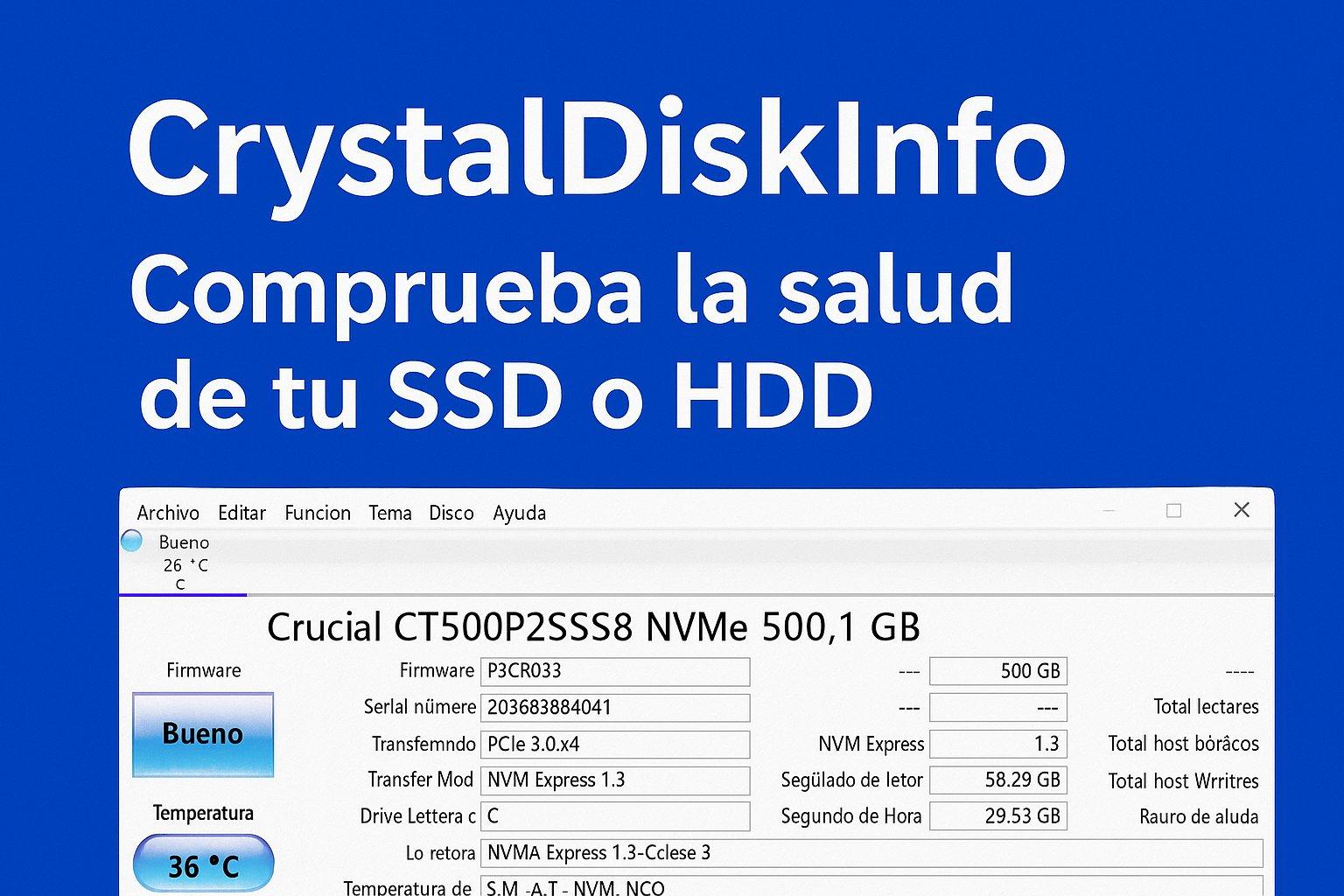
The first thing that usually catches your eye is the box or label that indicates the disk's health status . Depending on the program version, it may appear in colors (blue, yellow, red) or only as text in English: Good, Caution, or Bad.
When the status appears as Good , all relevant SMART attributes are within the values considered normal by the manufacturer. In many older versions, this was displayed in blue, indicating that you can rest assured. This doesn't mean the drive is indestructible, but it does mean that, to date, it hasn't experienced any serious problems.
If the status changes to Caution , the program has detected parameters that are beginning to degrade, such as reallocated sectors, recurring read errors, or indicators of advanced wear on an SSD. This is a typical situation where, even though everything seems to be working, it's advisable to back up important data and continue closely monitoring the drive.
When CrystalDiskInfo marks a disk as Bad , the number of errors or bad sectors has exceeded safety thresholds. At this point, there's not much to think about: you need to back up your data as soon as possible and replace the disk , because it could stop working at any moment.
Right next to the health status, the drive's temperature is displayed , usually in degrees Celsius. Values around 30-45°C are normal under light or moderate use. If you regularly see temperatures above 50-55°C, especially on an M.2 SSD attached to the motherboard, it's a good idea to improve the system's ventilation or add a small heatsink . For extreme cases, see what to do if the SSD temperature rises above 70°C , because excessive heat shortens the lifespan of both SSDs and HDDs.
A little further to the right you'll find the specifications for the selected drive: model name, capacity, firmware version, serial number, interface (SATA, NVMe, USB…), transfer mode, supported standard, and active features . Among these features you'll usually find SMART, AAM/APM, and other manufacturer-specific functions.
At the top, next to the disk name, you'll also see values like Total Host Reads and Total Host Writes , which indicate the data read and written by the system. Additionally, the number of times the drive has powered on (how many times it has booted) and the accumulated operating hours are displayed . For mechanical hard drives, this is a very useful way to know if the drive has been powered on for six months or has already exceeded the typical 20.000 hours of estimated lifespan.
How to check the wear (TBW) and lifespan of your SSD
In SSDs, one of the most interesting pieces of information offered by CrystalDiskInfo is the wear level measured in TBW (Terabytes Written) . SSD durability is based on the total amount of data that can be written to their memory cells before they begin to fail irreversibly.
When you open CrystalDiskInfo with a selected SSD, you'll see a value among the SMART attributes or at the top that reflects the total gigabytes or terabytes written since the drive was first installed . For example, if 2.632 GB is displayed, that equates to approximately 2,6 TB written over the SSD's lifetime. Both the format and the specific attribute vary depending on the manufacturer, but the program handles the translation quite clearly.
In addition, many modern SSDs report a remaining lifespan percentage . CrystalDiskInfo typically displays this as a percentage, where 100% represents a brand-new drive. Over time, as write cycles are consumed, this value decreases. It's important to understand this as an estimate: the program calculates based on the average expected lifespan of the SSD , not a crystal ball predicting the exact day it will fail.
To determine if you should be concerned, compare the TBW (Terabytes Written) displayed by CrystalDiskInfo with the figure provided by your SSD manufacturer in its technical specifications. Many consumer models are rated around 150-600 TBW, while more advanced models can easily exceed 1.000 TBW. If your SSD has, for example, 50 TBW used out of a guaranteed 300 TBW, it still has plenty of life left.
The program also lets you check if certain wear-related attributes, such as Wear Leveling Count, Percentage Used, and Media Wearout Indicator , are still within normal ranges. As long as the overall condition is Good and these counters aren't approaching their limits, you can rest easy.
On mechanical hard drives (HDDs), however, TBW data is not usually displayed because wear is based less on the number of writes and more on the mechanical use of the platters and heads. For these drives, the most relevant parameters are those related to reallocated sectors, read errors, and power-up time.
Key SMART attributes and how to interpret them
The bottom of the CrystalDiskInfo window displays a large table with all the SMART attributes reported by the disk . It might seem impressive at first glance, but you don't need to memorize every single one; knowing the most important ones is more than enough.
Each row in that table includes several columns: Attribute ID, Name, Current Value, Worst Recorded Value, Threshold, and Raw Value . What really matters is the relationship between the Current Value and the Threshold. As long as the Current Value is above the Threshold, the attribute is considered within normal limits.
The problem is that manufacturers don't use a uniform scale. Some start at 100, others at 200, others at 253… and in many cases you'll see numbers that don't seem to make much sense. The key is that the value decreases as the attribute worsens , and if it falls to or below the threshold, CrystalDiskInfo will mark the drive as Cautionary or Bad.
Among the most relevant SMART attributes are usually:
- Reallocated Sectors Count: sectors that have been marked as defective and reassigned to reserve areas.
- Current Pending Sector Count: sectors that may be damaged and are pending reassignment.
- Uncorrectable Sector Count: sectors with errors that could not be corrected.
- Power-On Hours: total hours the unit has been switched on.
- Power Cycle Count: number of on/off cycles.
- Temperature: recorded temperature.
- Total LBAs Written/Read or similar: related to data read/written (TBW on SSD).
On SSDs, you'll also see specific cell wear attributes, such as Wear Leveling Count, Percentage Used, Media Wearout Indicator, and similar metrics . These help you understand how much of the internal NAND memory has actually been used and how much headroom it has before reaching its design write limit.
Keep in mind that each manufacturer defines its own limits and way of presenting SMART information . Therefore, when you want to delve deeper, it's recommended to complement CrystalDiskInfo with the manufacturer's official tools: Samsung Magician , Crucial Storage Executive, WD Dashboard, Kingston SSD Manager, ADATA SSD Toolbox, etc. These tools interpret the specific data of their models more accurately.
Advanced features: continuous monitoring, alarms, and graphs
CrystalDiskInfo is more than just a simple viewer. It includes a range of advanced features that make the application a very useful continuous monitoring solution , especially if your computer is on for many hours a day or handles important data.
One of the most interesting features is Resident & Alarm mode . When activated, the program minimizes to the system tray (next to the Windows clock) and displays an icon showing the current temperature of the selected disk. From then on, you can configure audible alerts when the disk's health drops to Caution or Bad, or when the temperature exceeds a specific threshold that you define.
Another powerful feature is email alerts (Alert Mail) . After configuring an SMTP account (for example, from your email provider), CrystalDiskInfo can automatically send you an email if it detects critical problems on any drive. This is very useful if you manage multiple computers or a home server and aren't always at your PC.
Also worth mentioning is the SMART attributes chart , accessible from the context menu. This tool allows you to visualize the historical evolution of any parameter: temperature, power-on hours, reallocated sectors, percentage used, etc. By checking it once a month, you can detect dangerous trends, such as a progressive increase in reallocated sectors on an HDD.
On some compatible drives, CrystalDiskInfo offers control over AAM (Automatic Acoustic Management) and APM (Advanced Power Management) . With AAM, you can adjust noise levels in relation to performance on certain HDDs; with APM, you can balance power consumption and speed. Not all drives allow you to adjust these parameters, but when they are available, the program transforms from a simple monitor into a fine-tuning tool.
Finally, you can configure CrystalDiskInfo to start automatically with Windows in resident mode with alerts enabled. This way, you'll have your disk status under control without having to remember to manually open the application.
Limitations of CrystalDiskInfo and reliability of its results
Although CrystalDiskInfo has earned its reputation as a reliable tool, it's important to understand its limitations. It cannot accurately predict the day and time a disk will fail . What it does is detect early warning signs based on the SMART data the disk itself provides.
On SSDs, SMART parameters related to wear are usually quite accurate. The tool faithfully reflects the write cycles consumed and any errors in memory cells , so the health alerts are generally reliable. If an SSD starts showing very low lifetime percentages or displays many block errors, it's wise to take it seriously.
With mechanical hard drives (HDDs), things get more complicated. An HDD can start to fail mechanically (noises, vibrations, lag) before SMART registers critical values . In other words, CrystalDiskInfo might indicate that everything is fine when you already notice your computer is much slower, crashing, or displaying error messages when copying files.
This happens because SMART only sees what the disk's firmware tells it . Slow sectors that haven't yet been marked as bad, slightly misaligned heads, or bearing wear aren't always immediately reflected as reallocated sectors or accounting errors.
For this reason, CrystalDiskInfo should be interpreted as one piece of the diagnostic tool, not as the sole determining factor . If you hear strange noises, notice vibrations, or see the system freeze when accessing certain files from your hard drive, it's advisable to supplement the information from CrystalDiskInfo with tools like CHKDSK, HDDScan, Victoria HDD, or Hard Disk Sentinel, which perform much more aggressive surface and performance tests.
It's also important to remember that, although most users report very accurate data, no tool is infallible . There's always a small chance of errors, incomplete reads, or bugs specific to a particular disk model. Again, relying on the manufacturer's official software and other diagnostic utilities is the most sensible way to get a complete picture.
How often should you check the health of your SSD or HDD?
You don't need to obsessively check your hard drive's health every day, but it's also not a good idea to forget about it for years. For normal home use, running CrystalDiskInfo every 3-6 months is a good starting point . This way, you can detect any unusual degradation early without having to constantly monitor it.
If your computer is used intensively (professional video work, virtual machines, home servers, etc.), it makes sense to shorten the interval and check every 1-2 months . Additionally, if you have the program running in resident mode with alarms, you'll have extra monitoring effortlessly.
In practice, the most important thing is that whenever you notice unusual symptoms (sudden slowness, copy errors, freezes, noises from an HDD, etc.), you open CrystalDiskInfo and take a quick look at the health status and the SMART table . That alone will give you a pretty good idea of whether the problem is coming from the disk or another component.
Good habits to extend the life of your hard drives
Beyond using CrystalDiskInfo, there are several simple practices that greatly help your drives last longer without problems. The first is temperature control: keeping your drives in a cool, well-ventilated environment , away from direct heat sources like radiators or sunlight coming through the window, significantly reduces the risk of premature failure.
On laptops, especially those still using mechanical HDDs, avoid sudden movements while the drive is working . A mistimed bump can cause erroneous writes and damaged sectors. Although SSDs have no moving parts and withstand jolts better, it's still a good idea to handle your device with a little care.
Another good practice is to avoid filling your hard drives completely . Maintaining at least 10-20% free space allows the operating system and the SSD itself to perform internal maintenance tasks (TRIM, data relocation, etc.) and reduces overheating. A drive that's constantly at 99% usage not only runs slower but also degrades faster.
For HDDs, occasionally defragmenting (only on mechanical drives) helps reorganize scattered files and improve performance. You shouldn't defragment SSDs, as it offers no advantages and only adds unnecessary writes; instead, simply ensure TRIM is enabled and, if desired, follow guides for optimizing an SSD in Windows 11.
Of course, the most important measure is to make regular backups of your important data . No program, however good, can guarantee that your hard drive won't fail suddenly, especially in the case of some SSDs that die without warning. Having a backup on another drive, in the cloud, or both saves you trouble, money on recovery services, and headaches.
What to do if CrystalDiskInfo detects problems
If you open CrystalDiskInfo one day and see that the status has changed to Caution or Bad, or notice that certain SMART attributes have clearly worsened, it's time to take action. The first thing to do, before touching anything, is to back up everything you don't want to lose . The sooner, the better.
Once you have the backup, try not to put too much strain on that drive: avoid installing new programs, downloading large files, or continuing to work intensively on it . The less you stress it, the more likely it is to hold up while you migrate your data to another drive.
In Windows, you can use built-in system tools to rule out logical problems. Commands like sfc /scannow and DISM /Online /Cleanup-Image /RestoreHealth allow you to repair Windows files and components that were damaged by read errors.
With hard drives, it's still very useful to run CHKDSK with parameters that search for and isolate bad sectors, for example, `chkdsk C: /f /r` . This command performs a deep scan of the disk surface and marks damaged sectors so the system won't use them again. Keep in mind that it can take a considerable amount of time and it's not a miracle cure: if the disk is severely damaged, it will only buy you a little extra time.
In the case of SSDs, it's not recommended to overuse CHKDSK with /r , as it forces an intensive read of all blocks and adds unnecessary wear. It's better to use the manufacturer's official utilities (Samsung Magician, Crucial Storage Executive, WD Dashboard, etc.), which include specific diagnostics and, in some cases, low-level repair functions.
If, despite everything, errors persist or the disk's performance is clearly unstable, the sensible thing to do is consider the drive finished and replace it . The purpose of tools like CrystalDiskInfo is precisely to help you reach that decision before the disk fails suddenly and without warning.
Other useful tools and alternatives to CrystalDiskInfo
While CrystalDiskInfo covers most monitoring needs, you might want to try other applications to complement or compare results. One of the best-known is Hard Disk Sentinel , a very comprehensive software that, in addition to reading SMART data, performs performance tests and offers detailed recommendations for improving disk health.
For more thorough surface analysis of hard drives, tools like HDDScan or Victoria HDD allow you to locate slow or bad sectors with great precision. They are somewhat more technical, but highly valued among advanced users when they suspect physical problems in a mechanical hard drive; and if you want to measure specific health and speed parameters, you can try HD Tune.
If you're looking for something more general that displays information about all your hardware, Speccy (from the creators of CCleaner) or HWiNFO are great options. They allow you to see temperature, basic disk health, voltages, CPU load, and more. They don't replace CrystalDiskInfo's detailed SMART data, but they're useful for a quick overview of your entire system. For performance tests focused on SSDs and hard drives, there are also benchmarking tools like CrystalDiskMark.
In the open-source realm, Open Hardware Monitor offers comprehensive monitoring of temperatures, fans, and resource usage, including basic disk information. And if your SSD is from a specific manufacturer, it's almost always a good idea to install their official software, such as Samsung Magician, WD Dashboard, Kingston SSD Manager, Crucial Storage Executive, or ADATA SSD Toolbox , which interpret SMART data with the highest possible accuracy.
If you work with macOS, CrystalDiskInfo isn't natively available, but you have alternatives like DriveDx , which offers a similar level of detail and is specifically designed for the Apple ecosystem. On Linux, tools like GSmartControl or smartmontools serve an equivalent purpose in reading and analyzing SMART attributes.
Frequently Asked Questions about CrystalDiskInfo
A common question is whether CrystalDiskInfo can be used with external hard drives or USB drives . The answer is yes, provided those drives support SMART and expose the data to the system. Simply connect them to your PC, open the program, and select the corresponding device at the top. If it doesn't appear, it could be a limitation of the USB controller or the drive itself.
Another logical concern is whether CrystalDiskInfo can damage the hard drive or SSD . The application is read-only: it simply queries the firmware for SMART data and displays it on screen. It doesn't write to or alter the drive's information, so the risk of damage from its use is practically nil. The only precaution you need to take is to always download it from official sources to avoid versions compromised with malware.
Regarding frequency of use, as we've already mentioned, for the average user it's sufficient to check the disks every 3-6 months , while for heavily used systems it's reasonable to do so every 1-2 months. If you notice any unusual behavior, open the program immediately, without waiting for the next scheduled check.
If a drive appears as having an unknown status or is not detected at all , it could be due to several reasons: a faulty physical connection, a damaged cable, a problematic port, or a lack of SMART support. It's also possible that an older version of the program isn't fully compatible with a particular drive model. In these cases, check the cables, enable SMART in the BIOS (if applicable), and update CrystalDiskInfo from the official website.
Regarding lifespan prediction, CrystalDiskInfo can't tell you exactly how much time the drive has left , but it does show parameters that clearly indicate wear. For SSDs, if the wear attribute (Percentage Used, for example) is very high or the Wear Leveling Count is close to its limit, it's a clear sign that you should take extra precautions and strengthen your backups.
Considering all of the above, it's easy to see why CrystalDiskInfo has become a kind of "quick MOT test" for hard drives: it's lightweight, free, easy to use, doesn't touch your data, and at a glance, tells you whether your HDDs and SSDs are still in good shape or if it's time for early retirement . Combine it with good backups and basic temperature and free space management, and you'll have your drives under control and your files much safer from unexpected problems.


Passionate writer about the world of bytes and technology in general. I love sharing my knowledge through writing, and that's what I'll do on this blog, show you all the most interesting things about gadgets, software, hardware, tech trends, and more. My goal is to help you navigate the digital world in a simple and entertaining way.
Table of Contents
- 1 What is CrystalDiskInfo and what exactly is it used for?
- 2 How to download CrystalDiskInfo safely
- 3 Windows Installation and First Boot
- 4 Understanding the main screen: health, temperature, and basic data
- 5 How to check the wear (TBW) and lifespan of your SSD
- 6 Key SMART attributes and how to interpret them
- 7 Advanced features: continuous monitoring, alarms, and graphs
- 8 Limitations of CrystalDiskInfo and reliability of its results
- 9 How often should you check the health of your SSD or HDD?
- 10 Good habits to extend the life of your hard drives
- 11 What to do if CrystalDiskInfo detects problems
- 12 Other useful tools and alternatives to CrystalDiskInfo
- 13 Frequently Asked Questions about CrystalDiskInfo