- Trusted locations allow you to open Office files with active content without warnings or restrictions, so they should only be used in truly secure folders and sources.
- They can be managed from the Trust Center of each application or centrally through group policies, controlling local, network, and web locations.
- Office security policies allow you to limit or disable trusted locations, as well as combine or not those defined by the user with those imposed by the organization.
- Access, Excel, Word Other apps have default trusted locations, and it's possible to add new paths graphically or, in the case of Access Runtime, through the Registry. Windows.
The trusted locations of Microsoft Office They're one of those settings that almost no one looks at until the security alerts, blocked macros, and "potentially dangerous content" messages start appearing. However, if you work daily with Excel, Word, Access, or PowerPoint, understanding how they work can save you a lot of headaches.
In this article we will see, in detail, how Add, remove, or modify a trusted location in OfficeWhat are the security implications, how can it be managed in corporate environments using Group Policy Objects (GPOs), and what options are available if you need to work with files downloaded from the internet, shared over a network, or stored on a drive? SharePoint, without losing the protection of the Trust Center.
What exactly is a trusted location in Office?
An trusted location It's a folder (local, network, or web) that Office considers safe by default. Any file opened from there runs without going through many of the usual security checks of Office. Trust Centerand it doesn't open in Protected View or Application Protection.
This means that in those folders All active content is automatically enabled from the file: VBA macrosUnsigned add-ins, ActiveX controls, external data connections, hyperlinks, links to data sources, embedded media, etc. The user receives no risk warnings or security alerts because Office assumes you trust everything stored there.
In the internal Office security workflow, files located in a Trusted location bypasses all other controlsFile validation is omitted, file lock settings are ignored, Protected View is not used, and application protection is not applied. That's why they are so useful... and at the same time so sensitive in terms of security.
For this reason, Microsoft recommends that the Trusted locations are used in a very limited wayFor specific scenarios and, if possible, only for specific users who truly need it. In the Application Security Baseline Microsoft 365 For businesses, it is even advisable to disable network-based trusted locations and control them centrally through policies.

When is it appropriate to use a trusted location (and when is it not)
Before adding a folder to the list, it's important to be very clear that Everything you save there will run without filters.If the file contains malicious code, Office won't warn you. Therefore, you should only use trusted locations when:
• You work with files with macros, plugins, or ActiveX controls whose origin you know well (for example, internal files of your company).
• You need to prevent certain documents from opening in Protected View because you use them frequently and you trust them.
• You want a specific set of users to always be able to run the active content of certain files without security warnings.
It is not a good idea:
• Mark a location as trusted root unit (for example, C:\ or all of “My Documents”), because you would be entrusting files en masse that you do not control.
• Allow trusted locations in poorly controlled network folders or widely shared.
• Use them as a quick fix to avoid learning how to manage certificates, digital signatures, and trusted publishers.
How to add a trusted location in Office step by step
The process of creating a trusted location is very similar in Access, Excel, PowerPoint, Visio, and Word. All these applications share the same settings. Trust Center.

To add a folder as a trusted location from within the application itself:
1. Open the appropriate Office application (for example, Excel, Word, or Access).
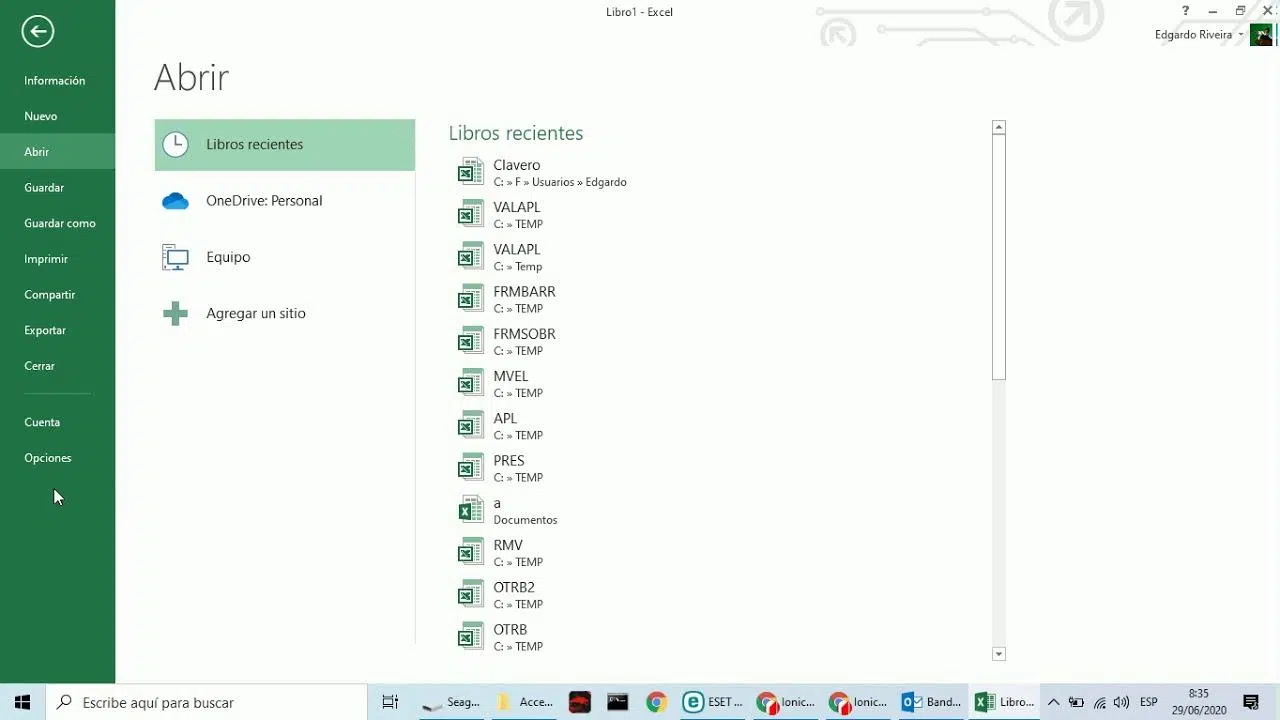
2. Click on the tab Archive and enters Options.
3. In the side menu, select Trust Center and click on Trust Center Settings.
4. In the window that opens, go to the section Trusted Locations.
5. Click Add new location.
6. Tap BrowseFind the folder you want to designate as secure, select it, and accept.
7. If you want to subfolders If you are also considered trustworthy, please tick the corresponding box.
From that moment on, files you open from that path will be considered safe by Office. No security alerts will be displayed and the active content will run without blocking.
How to remove a trusted location
If you have marked a folder as a trusted location and no longer want it to have that level of permissions, you can easily remove it from the same Trust Center.
To remove a trusted location:
1. Open the Office application in question and go to File > Options.
2. Access Trust Center and click on Trust Center Settings.
3. Select the section Trusted Locations.
4. In the list of locations, select the folder you want to delete.
5. Click Remove and later Accept to confirm.
Since then, The files located in that folder will be transferred again. due to the usual security checks (Protected View, validation, etc.), and active content will be blocked if so indicated by your organization's policies.
How to modify an existing trusted location
you may need adjust an existing trusted locationFor example, to change the folder, enable or disable trust in subfolders, or update the description.
The steps are very simple:
1. Open the application (Excel, Word, etc.) and enter File > Options.
2. Go to Trust Center and click on Trust Center Settings.
3. Select Trusted Locations.
4. In the list of locations, choose the one you want to edit and click on Modify.
5. Change the path, name, or option of also trust subfolders according to your needs.
6. Press Accept To save the changes.
Keep in mind that if you change the route to a completely different one, You will be changing the scope of trustSo it's a good idea to carefully review the permissions and which users can write to that new folder.
Relationship between trusted locations and security in Office
Trusted locations don't work in isolation: they are closely linked to other security features such as Protected View, File Validation, File Lock and Application Protection.
When a file is opened from a folder marked as trusted:
• It does not open in Protected View.even if the file originally came from the Internet or an email attachment.
• I know They skip the file validation checks (which they usually check for integrity and format).
• The configuration does not apply file lock for certain types of old or potentially dangerous documents.
• The file also doesn't fit in Application protection (additional sandboxing in some environments).
This provides a lot of convenience, but it also means that you have to truly trust the origin of the files you store there. For IT managers, Microsoft's general recommendation is:
• Use trusted locations highly selective.
• Prefer local locations versus network locations.
• Disable, whenever possible, the use of trusted locations freely configured by the end user.
Planning trusted locations in an organization
If you manage a corporate environment, it is worth defining a clear strategy for trusted locationsBroadly speaking, you have several levels of trust that you can allow:
• Allow end users create your own locations trusted (local or network).
• Prevent, via policy, the user from creating or modifying trusted locations and manage them solely from IT.
• Completely disable trusted locations in the organization.
• Mix both models (policy locations + user locations), if it fits the acceptable risk.
You must decide:
• So that office applications (Access, Excel, Word, PowerPoint, Visio, Project) you will use trusted locations.
• That specific folders you want to designate as trusted (with very specific paths, never broad root folders).
• That security permits and sharing will apply to each folder (who can read, who can write, who can modify).
• That additional restrictions (for example, banning networks, disabling user settings) you are going to apply.
Office applications that use trusted locations
The main applications which allow you to manage trusted locations from your own Trust Center are:
• Access.
• Excel.
• Power point.
• Vision.
• Word.
In all of them, the route is very similar: File > Options > Trust Center > Trust Center Settings > Trusted LocationsIn addition, there are specific GPO policies for each location to centrally manage these locations.
How to choose the right folders as trusted locations
When deciding which folders to mark as trusted, it is essential to apply the principle of least privilegeSome practical recommendations are:
• Do not use root folders (for example, C: \ or all of “My Documents”) as a trusted location; creates dedicated subfolders and mark only those.
• Whenever possible, choose local locations on the user's device. Network locations are possible, but not recommended if they are not tightly controlled.
• The same folder can be used as a trusted location for various applications of Office (for example, for common Word and Excel templates).
• If you manage large environments, take advantage of the policy Trusted Location #1 (and following) to define the routes centrally.
Additionally, make sure that the folders you mark as trusted are properly protected in terms of permissions. NTFS and sharing: ideally, only users who actually need to edit files should have access. total control, and the rest have, at most, read permissions.
Using policies (GPO, Cloud Policy, Intune) to manage trusted locations
In enterprise environments, it's not feasible for each user to freely configure their trusted locations. Therefore, Microsoft provides several options. group policies and cloud-based management options to control them:
• Cloud Policy from Microsoft 365.
• Microsoft Intune (for managed devices).
• Group Policy Management Console (GPMC) for domain-joined equipment.
Within the GPMCYou will find specific directives for each application in the path User Configuration \ Policies \ Administrative TemplatesSome examples of policy placement:
• Access: Microsoft Access 2016\Application Settings\Security\Trust Center\ Trusted Locations.
• Excel: Microsoft Excel 2016\Excel Options\Security\Trust Center\ Trusted Locations.
• PowerPoint: Microsoft PowerPoint 2016 \ PowerPoint Options \ Security \ Trust Center \ Trusted Locations.
• Project: Microsoft Project 2016 \ Project Options \ Security \ Trust Center.
• Visio: Microsoft Visio 2016 \ Visio Options \ Security \ Trust Center.
• Word: Microsoft Word 2016\Word Options\Security\Trust Center\ Trusted Locations.
Directive “Trusted Location No. 1” and following
Directive “Trusted Location No. 1” (and its variants #2, #3, etc.) allows you to define folder paths that are considered trusted by users. They come unconfigured by default, and you must enable them and fill in the required fields.
When you activate this policy, you can specify:
• The path to the folder (local, network or web).
• If trust is also allowed in the subfolders.
• Optionally, a short description or comment.
The locations defined this way will appear in the app's Trust Center, in the section Locations (of management)Within File > Options > Trust Center > Settings > Trusted LocationsHowever, the user will not normally be able to modify them if another directive so determines.
Directive “Allow trusted locations on the network”
This directive controls whether they can be used network folders such as trusted locations. It has a significant impact on the attack surface, so it shouldn't be taken lightly.
Their behavior is:
• Disabled (Protected – recommended)All trusted locations on the network are blocked, including those configured by the administrator using "Trusted Location #1". User-defined network locations are ignored, and users are prevented from adding new ones.
• Enabled (Not protected)It allows both policies and users themselves to define trusted locations on network routes.
• Not configured (Partially protected)By default, the user cannot add network locations as trusted, but they can enable this option by checking the box “Allow trusted locations on my network (not recommended)” in the Trust Center.
The Microsoft 365 Apps for Enterprise security baseline recommends setting this policy to disabled for most users, and only make very specific exceptions if there is no other option.
Directive “Disable all trusted locations”
If your organization wants an extremely controlled environment, you can resort to directives. “Disable all trusted locations”which does exactly that: block this mechanism as a whole.
It works as follows:
• Enabled (Protected)All trusted locations are blocked, both user-defined and administrator-configured.
• Disabled (Not protected)User-created and policy-created trusted locations are allowed, and both can coexist.
• Not configured (Not protected, default behavior): Same as “Disabled”, meaning standard Office behavior is maintained, allowing trusted locations.
Organizations with a very restrictive environment They usually set this directive as "Enabled" to completely eliminate this risk vector.
"Allow combination of policy and user locations" policy
Another key directive is “Allow combination of policy and user locations”which decides whether there can be user-defined trusted locations in addition to those set by policy.
This policy is located in: User Configuration \ Policies \ Administrative Templates \ Microsoft Office 2016 \ Security Settings \ Trust Center.
His logic is
• Disabled (Protected – recommended)Only policy-defined trusted locations are allowed; users cannot create or edit their own.
• Enabled (Not protected)The user can combine trusted locations created by him with those distributed by the administrator.
• Not configured (Not protected by default): This is practically equivalent to “Enabled”; the standard behavior that allows user locations is maintained.
Again, Microsoft's recommendation for the security baseline is to set it at disabled and grant exceptions only when absolutely necessary.
Default trusted locations in Access, Excel, PowerPoint, and Word
Office defines several by default. internal folders as trusted locationsThese locations are typically related to templates, plugins, and startup files. You can view them in the Trust Center > Trusted Locations.
Access
In the case of Microsoft Access, one of the default locations is
• Program Files \ Microsoft Office \ Root Office16 ACCWIZ: folder of databases of assistant. The subfolders No. They are considered trustworthy.
Excel
Excel includes several predefined folders such as trustworthy, for example:
• Program Files\Microsoft Office\Root\Templates: application templates (allowed subfolders).
• Users \ username \ AppData \ Roaming \ Microsoft \ Templates: user templates (no trust in subfolders).
• Program Files\Microsoft Office\Root\Office16\XLSTART: Excel home folder (allowed subfolders).
• Users \ username \ AppData \ Roaming \ Microsoft \ Excel \ XLSTART: user home (without trusted subfolders).
• Program Files\Microsoft Office\Root\Office16\STARTUP: Office startup (allowed subfolders).
• Program Files\Microsoft Office\Root\Office16\Library: add-ons (allowed subfolders).
Power point
Some default PowerPoint locations are:
• Program Files\Microsoft Office\Root\Templates: application templates (allowed subfolders).
• Users \ username \ AppData \ Roaming \ Microsoft \ Templates: user templates (allowed subfolders).
• Users \ username \ AppData \ Roaming \ Microsoft \ Addins: add-ons (subfolders not allowed).
• Program Files \ Microsoft Office \ Root \ Document Themes 16: application themes (allowed subfolders).
Word
In Word, some of the folders marked as trusted By default they are:
• Program Files\Microsoft Office\Root\Templates: application templates (allowed subfolders).
• Users \ username \ AppData \ Roaming \ Microsoft \ Templates: user templates (without trusted subfolders).
• Users \ username \ AppData \ Roaming \ Microsoft \ Word \ Startup: user home (without trusted subfolders).
Trusted publisher management and signed content
In addition to trusted locations, Office allows working with the concept of “trusted editor”A publisher is the person or company that digitally signs software, a macro, an ActiveX control, or an add-in. Marking it as trusted tells Office that it can run its code. without displaying warnings.
Before trusting an editor, it is advisable to:
• Verify your identity and reputation.
• Check that your certificates It is valid, it is not expired or revoked.
• Make sure you really want to all documents signed by that editor are executed without warning.
How to add an editor to the list of trusted editors
The simplest It is starting from a file (for example, a Word document with macros or an Excel workbook) that contains a macro, an ActiveX control, or an add-in signed by that publisher:
1. Open the file in the corresponding Office application.
2. Go to the tab Archive and enters Information.
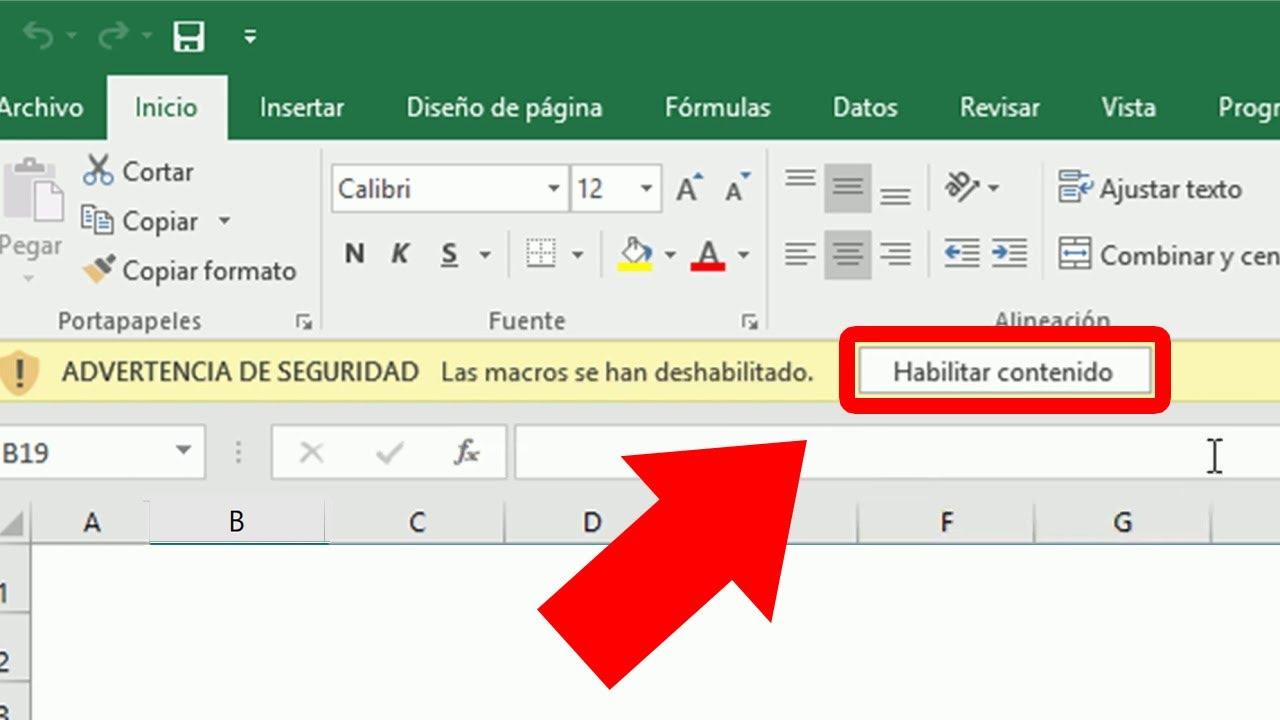
3. In the area of Security warning, press Enable content and then Advanced.
4. In the window Microsoft Office security options, Select Trust all documents from this publisher.
If you prefer, you can also enable the editor's active content. for the current session onlyBy selecting “Enable content for this session” in the same dialog box, the file will function without restrictions while the application is open, but the editor will not be permanently added to the list.
How to view or remove a trusted editor
If at any time you want Check which publishers you have marked as trustedOr if you want to remove one, you can do so from the Trust Center:
1. Open the Office application and go to File > Options.
2. In the left column, select Trust Center and click Trust Center Settings.
3. On the side panel, choose Trusted publishers.
4. In the list, select the editor you want to remove and press Remove.
If you see that the button Remove If it appears disabled (grayed out), it means that the Office program It is not running with administrator privileges. Then:
1. Close the Office application.
2. Tap Home and type, for example, “Word”.
3. Right-click on the result and choose Run as administrator.
4. If your user account does not have administrator privileges, Windows will prompt you for credentials from an account with those privileges using the User account control (UAC).
5. Once the app is open with elevated privileges, repeat the process to remove the editor.
Practical example: Excel macros, SharePoint, and GPO
A fairly common scenario in corporate environments with hardened security is the following: you have Windows 10 with GPOs based on DoD STIGsThis means that by default you cannot run macros in Excel files that come from the Internet.
Imagine you need to use Excel workbooks with macros that downloads of the internet, but you don't want to disable protection globally. One option is to configure a SharePoint folder synchronized on the device, for example:
• C:\Users\username\company_name\Site – Documents\General\Reports
Then, from the Excel GPO (User Configuration > Administrative Templates > Microsoft Excel 2016 > Excel Options > Trust Center > Trusted Locations), you configure the “Trusted Location No. 1” with that path, checking “Allow subfolders”. You can even use the environment variable %username% on the route if applicable.
However, in many cases, even if the route seems correct, Macros are still not enabledWhat could be happening?
• It is possible that a higher directive is blocking the use of trusted network locations (if the synchronized folder is considered a network folder or if the macro policies are stricter).
• There may be a a policy that disables all trusted locations, so your “Trusted Location No. 1” never gets applied.
• It is also possible that another GPO is forcing the blocking macros from the Internet with higher priority than the configuration of trusted locations.
In these types of environments, for it to work, it is essential to review the complete set of applied policies (including “Disable all trusted locations” and “Allow trusted locations on the network”) and verify that the synchronized folder is actually recognized as valid trusted location for Excel.
Remove the security warning in Microsoft Access for network databases
Microsoft Access 2007, 2010, 2013 and later versions include mechanisms for prevent the automatic execution of VBA code from untrusted locations, especially if the database is opened from a network folder. Thus, when opening an .mdb or .accdb file over a network, it is common to see the following message:
“A potential security issue has been identified. Warning: It is not possible to determine if the content comes from a trusted source. You should leave this content disabled unless it is essential for core functionality and you trust its source…”
It's common to see this notice when the database path is not marked as trusted or when policies block network locations.
Configure the Access network location from the Trust Center
If you use the full version of Access:
1. Open Microsoft Access.
2. Go to File > Options.
3. In the side menu, select Trust Center and then press Trust Center Settings.
4. Check the box “Allow trusted locations that are on the network (not recommended)” to be able to use network folders.
5. Click Add new location.
6. Indicate the shared folder path on a network (for example, \\server\folder\Access).
7. If you want to include subfolders, check "Subfolders in this location are also trusted."
8. Accept the Trust Center and Options windows to apply the changes.
From that moment on, databases opened from that path will no longer display the security warning and will be considered trusted contentwith macros and VBA code enabled.
Add trusted locations for Access using the Registry (Runtime)
when you use Microsoft Access RuntimeYou don't have access to the Trust Center interface, so if you need to add trusted locations, you have to do it manually by editing the Windows' registerThis is also useful in automated deployments.
The general steps are:
1. Open the Registry Editor with Windows + R, writes regedit and click OK.
2. Navigate to the key:
HKEY_CURRENT_USER / Software / Microsoft / Office / 14.0 / Access / Security / Trusted Locations
(Keep in mind that 14.0 (This varies depending on the version of Office/Access you have installed).
3. Within “Trusted Locations”, right-click in an empty space in the right panel and select New> Password.
4. Assign the new key a name of the type LocationX, where X is a sequential number (for example, Location2 if Location0 and Location1 already exist).
5. Select the newly created key (LocationX). In the right panel, right-click and choose New > String value.
6. Call this value Path and edit it to include the network route of the folder you want to mark as trusted, for example: \\server\invoicing\access.
7. If you want subfolders to also be trusted, create a value of type in the same key DWORD (32 bit) called AllowSubfoldersand assign it the value 1.
After closing the Registry Editor, the Access databases launched from that path will open without displaying the warning of a possible security problemjust as if you had added the folder from the Trust Center.
To understand and handle well the trusted locations, trusted publishers, and security policies Office allows you to strike a balance between productivity and security. By defining specific paths, carefully adjusting folder permissions, and combining these options with proper certificate and macro management, you can work with complex files (containing VBA, add-ins, and controls) while minimizing annoying warnings, without leaving the door open for any downloaded file to execute code unchecked.

Passionate writer about the world of bytes and technology in general. I love sharing my knowledge through writing, and that's what I'll do on this blog, show you all the most interesting things about gadgets, software, hardware, tech trends, and more. My goal is to help you navigate the digital world in a simple and entertaining way.