- Recent updates may break dependencies on Copilot; removing the patch and repairing the system usually restores it.
- Copilot relies on Edge, WebView2, and key services; please check and restart these components before performing drastic fixes.
- The Voice/Vision conflict in the Edge sidebar is mitigated by disabling the Vision flag until a fix is available.
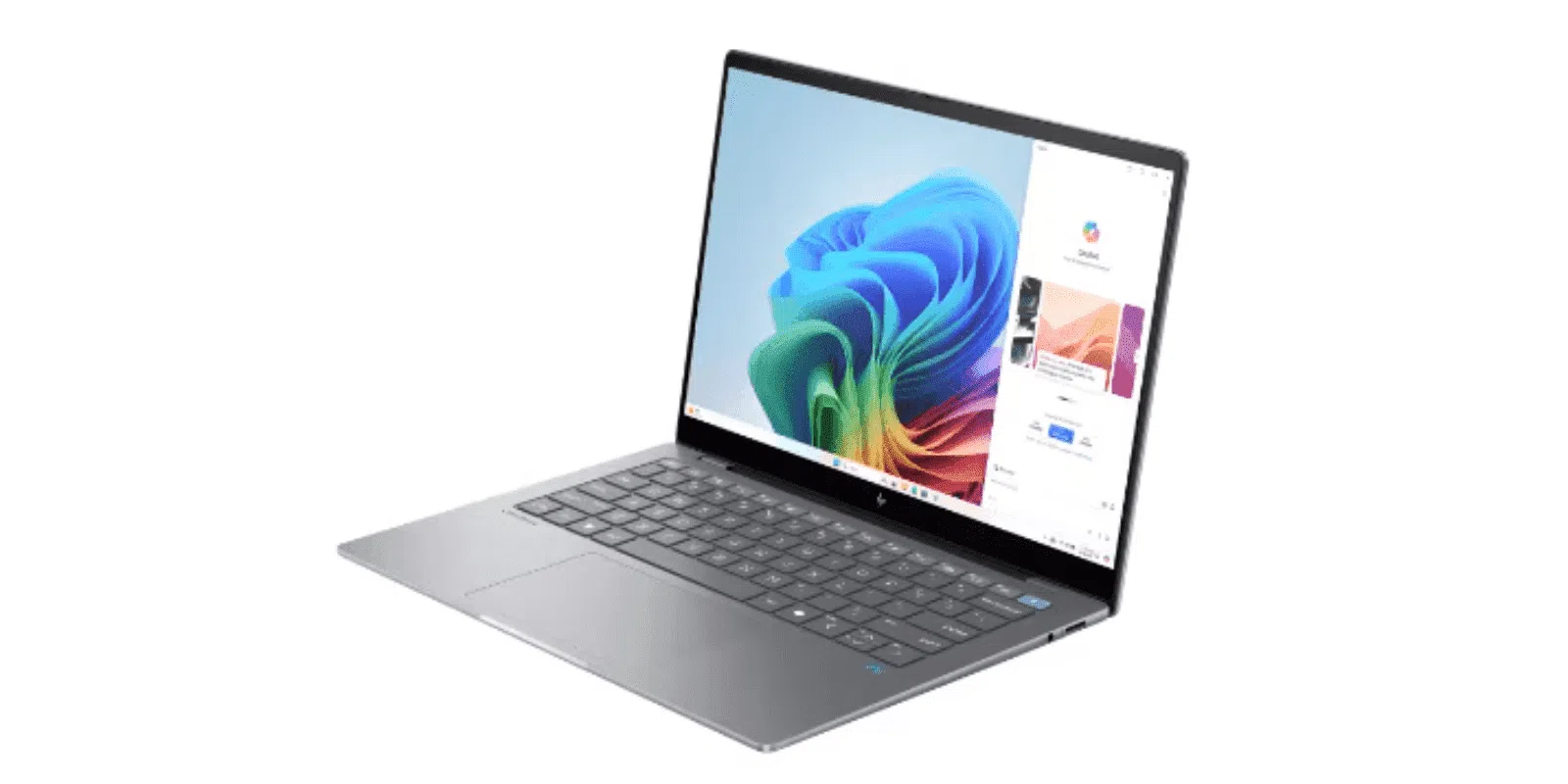
When Copilot freezes in Windows 11 and won't start , it can feel incredibly frustrating. Many users report that the icon appears but remains unresponsive, both from the Start menu and the Edge sidebar . Even after reinstalling from the Microsoft Store or repairing the system, the problem persists, suggesting deeper issues such as problematic updates, corrupted dependencies, or network conflicts. Our guide to common Copilot errors provides more examples and symptoms reported by the community.
In recent weeks, very similar cases have emerged on computers running Windows 11 24H2 and even Windows 10 Home Single Language 64-bit, with genuine licenses and up-to-date systems. After a specific September rollup update (KB5065429 is cited in several reports), Copilot stopped launching and in some cases seemed to "disappear ." Others experienced only partial failures: the voice prompts in the Edge sidebar stopped working when Vision was activated. This article compiles all these symptoms and proven solutions, ordered from least to most invasive, so you can get Copilot working again without wasting time or data; also see our recommendations for activating and using Copilot if you need a complete overview.
Why Copilot stops responding after updating Windows 11
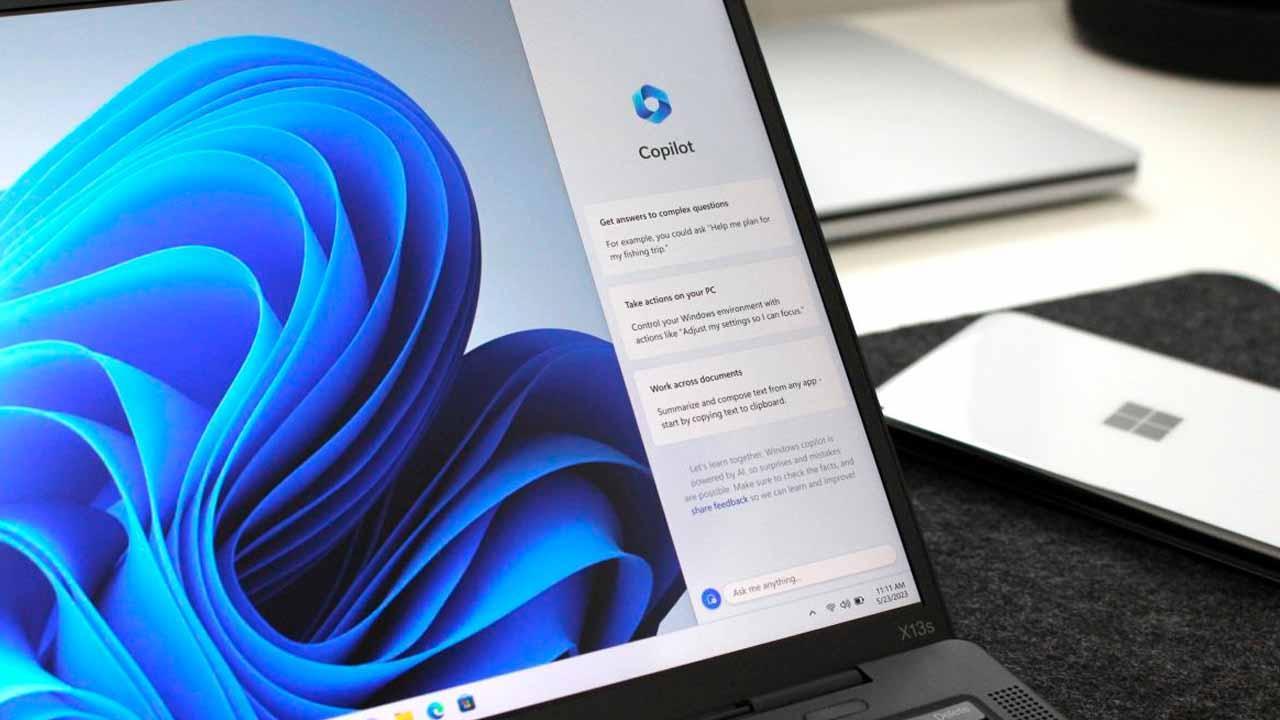
The patterns are repeating themselves: after a major update, Copilot and Edge components start malfunctioning. There are indications that certain patches can corrupt key system files or leave dependencies unresolved , especially UWP and .NET components, or the Microsoft Edge WebView2 runtime, on which much of the user experience relies. If you need a step-by-step guide on how to reinstall and configure Copilot, the guide to setting up Windows 11 with Copilot is helpful.
Copilot's close relationship with Edge also comes into play. If the browser is damaged or its auxiliary services (such as Microsoft Edge Elevation Service) stop working, the domino effect reaches Copilot . Something as simple as a disabled or stuck service can be enough to render the interface unresponsive.
Several studies also cite environmental factors: incompatible region and language, DNS/proxy blocking access to Microsoft servers, or antivirus/firewalls silently blocking access . When you add a user profile with anomalous permissions or corrupted caches, the equation becomes even more complex. If you suspect the regional or language settings, try changing Copilot's language as a diagnostic test.
Finally, there have been cases where the problem originated "from above": reports indicated Copilot was temporarily disabled at the source, and support recommended waiting a few days for a patch . If this is your situation, it's advisable to check the status of Microsoft services before driving yourself crazy changing settings.
Common symptoms and error messages
Identifying the specific circumstances helps in choosing the right solution. These are the most common symptoms when Copilot stops responding :
- Icon that does not open: You launch Copilot from Start or the sidebar and nothing happens, no visible errors.
- The Get Help app also won't start (“Get Help”), which suggests a UWP dependency or permissions issue.
- From Edge, Voice fails with Vision enabled: When you press the microphone, it says, “An error has occurred. That’s on me, something went wrong. Please try reconnecting.”
- In a new profile it does not change: Even after creating another local/administrator account, Copilot still won't start.
- WebView2 reinstalled without effect: You install the Evergreen x64 runtime manually and Copilot doesn't appear or enable.
On devices with the latest version of Edge, the Voice/Vision pattern is very clear: if the Vision flag is enabled, Voice breaks; if you disable it, Voice returns, but you lose Vision . Voice does work in the web version of Copilot (copilot.microsoft.com), which limits the bug to Edge's integrated sidebar; in the meantime, you can review how to use Copilot Vision to assess whether temporarily disabling that option is worthwhile.
Quick checks before you get started
Before making more significant changes, it's wise to address the basics. These quick checks resolve more problems than you might think.
- Connectivity: try other sites, restart the router and verify that you're not using the wrong proxy (Settings > Network & Internet > Proxy). If in doubt, temporarily disable it.
- Microsoft Services Status: Check the official status page and, if you want a second opinion, Down Detector for regional outages.
- Login successful: located on Microsoft 365Please verify that you are using a licensed Copilot account where applicable; an incorrect login may cause strange "silences."
- Region and language: Set a supported country/region (e.g., Spain or Mexico) and set English (United States) as the preferred testing language if you suspect a regional limitation. There are wave rollouts and features that arrive in phases..
- Cache/cookies: Clear your browser and try again; corrupted data causes strange behavior.
- Restart: It sounds like a cliché, but a full reboot brings up services and reestablishes connections. Sometimes it's a miracle cure.
A side note: don't confuse system health with web load metrics. Indicators like FCP, LCP, or CLS (time to first render and visual stability) don't explain why Copilot isn't responding ; they're useful for analyzing page performance, not the startup of UWP/Edge apps .
Solutions derived from real cases (from least to most intrusive)
Several people have followed similar paths, and we've consolidated what works best. Apply the steps in order, checking after each one if Copilot revives.
1) Uninstall the problematic update and pause Windows Update
If the failure started right after a cumulative patch, try removing it. Go to Settings > Windows Update > Update History > Uninstall Updates and remove the latest package associated with the issue date (KB5065429 was reported in September). After verifying that Copilot starts, temporarily pause updates.
You can use the Windows Update pause to wait until the corrective patch arrives..
2) Repair the system image (DISM/SFC)
If there are corrupted system files, DISM and SFC can recover them. Open Command Prompt as administrator and run the following batch files:
DISM /Online /Cleanup-Image /ScanHealth
DISM /Online /Cleanup-Image /CheckHealth
DISM /Online /Cleanup-Image /RestoreHealth
sfc /scannow
In some environments, the sequence has needed to be repeated several times until it is "clean". Running it 3–5 times can guarantee a complete repair if damage is still detected initially.
3) In-place (non-destructive) repair with Windows 11 ISO
When DISM/SFC aren't enough, in-place repair usually fixes components without affecting your files. Download the official ISO, mount the image, and run setup.exe . In the wizard:
- Select “Change how the installer downloads updates” and choose “Not now.”
- Under “Select what to keep,” select “Keep personal files and apps.”
- Complete the installation. If it asks for a key, the ISO does not match your edition.; download the correct one.
This repair will restore UWP/Edge dependencies without deleting anything. It's one of the most effective methods without formatting.
4) Re-register UWP packages with PowerShell
To rebuild logs for modern apps, use PowerShell (admin) and run:
Get-AppXPackage -AllUsers | Foreach { Add-AppxPackage -DisableDevelopmentMode -Register "$($_.InstallLocation)\AppXManifest.xml" }This command re-registers each AppX, which can reactivate "Get Help" and Copilot dependencies. Useful when the app won't open and isn't displaying any error message.
5) Check and restart critical services
Open services.msc and make sure the following are "Running" and set to "Automatic": Microsoft Edge Elevation Service, Web Account Manager, and Windows Update . If any are failing, set them to Automatic and restart them. Just one stuck service can block Copilot.
6) Check Microsoft Edge and WebView2
Copilot relies heavily on Edge and its runtime. In Settings > Apps > Installed apps > Microsoft Edge, first use "Repair" and, if the problem persists, "Reset" . Then, reinstall the "Microsoft Edge WebView2 Runtime (Evergreen)" x64 runtime and verify that it appears in the Apps list. If it doesn't, repeat the installation as an administrator.
7) Reset the network and check firewall, antivirus, DNS and proxy
From CMD (admin), reset the TCP/IP and DNS stack:
ipconfig /release
ipconfig /renew
ipconfig /flushdns
ipconfig /registerdns
netsh int ip reset
netsh winsock reset
netsh winhttp reset proxy
Then try alternative DNS servers (reports suggest 4.2.2.1 and 4.2.2.2) to improve resolution to Microsoft services. Temporarily disable third-party firewalls and antivirus software; some silently block access . If they continue to cause problems in the background, temporarily uninstall them and restart your computer. Remember to re-enable your antivirus protection afterward.
8) Region and language support
Go to Settings > Time & Language > Language & Region. Choose a country that supports Copilot and set English (United States) as your preferred testing language . Restart and check. Some Copilot features are rolled out in waves and may be limited by region/language, especially new features.
9) Create a clean user profile
To rule out corruption of the current profile, create a local administrator from CMD (admin):
net user NUEVOUSUARIO NUEVACONTRASEÑA /add
net localgroup administrators NUEVOUSUARIO /add
Log in with that account and test Copilot. If it works there, the problem lies in the previous profile (caches, permissions, etc.).
10) Clean boot
Configure a clean boot with minimal services and drivers following Microsoft's official clean boot guide. This helps isolate conflicts with third-party software . Avoid disabling network services or those related to Copilot/Edge during testing, or the results will be inaccurate.
11) Copilot Connectivity Solver
Open "Get Help" and search for "Copilot Connectivity Troubleshooter." Follow the guided steps to detect firewall rules, proxies, or blockers . It's a dedicated wizard that speeds up network diagnostics for Copilot.
Edge: Voice vs. Vision conflict in sidebar
Several users have described a very specific conflict: when the #edge-copilot-vision flag was active, the "Talk to Copilot" mode in the sidebar failed with the aforementioned error . Disabling the flag restored Voice functionality, but Vision disappeared. Voice works correctly on the Copilot website, narrowing the problem down to the sidebar integration.
What you can do until the fix arrives: Temporarily disable the experimental Vision flag in Edge and prioritize Voice stability if you use it daily . Also, create a new Edge profile and test it there; in some cases, the combination of the profile and the flag was the cause. Keep Edge updated to the latest stable version.
The availability of Vision and Voice may roll out in waves and by region. It's reasonable to expect a phased rollout in Spain/Europe and for some temporary incompatibilities . Microsoft should improve the error message to clearly state the cause (conflict, lack of availability, etc.), but in the meantime, the most reliable workaround is to disable Vision if you need Voice in the sidebar.
Copilot key behaves like Right Ctrl (MSI and others)
After a clean installation, some computers may not have the "Copilot key" function correctly and may still be mapped to the right Ctrl key. This usually depends on the manufacturer's firmware/utility and Windows' native support for that key . If your OEM doesn't expose the function, you can resort to remapping.
Two practical ways: use Microsoft PowerToys (Keyboard Manager) to remap the key to a combination that opens Copilot , or create a shortcut that invokes the Copilot protocol and assign it a hotkey.
- power toys: Remap Right Ctrl to "Win + C" (the classic Copilot shortcut on Windows). If your build uses another shortcut, remap it to that one. It's reversible and quick.
- Direct access: create a desktop shortcut targeting ms-copilot: (or the current command/URI for your build), assign a shortcut key to it, and if your keyboard/OEM utility allows you to bind the Copilot key to an executable/shortcut, point to that.
Also check your brand's software (MSI Center, etc.). Some OEM utilities allow you to assign functions to special keys, including the Copilot key . If native support isn't yet available for your model, remapping with PowerToys is a clean workaround until it is. You can also look up ways to access Copilot from the keypad for alternative options.


Passionate writer about the world of bytes and technology in general. I love sharing my knowledge through writing, and that's what I'll do on this blog, show you all the most interesting things about gadgets, software, hardware, tech trends, and more. My goal is to help you navigate the digital world in a simple and entertaining way.