- KDE Plasma offers an advanced touch mode with gestures, adapted panels, and a virtual keyboard for convenient use on tablets and convertibles.
- Tools like Touchegg, Touche, and Onboard allow you to expand multi-touch gestures and improve text input in combination with native functions.
- Recent versions such as Plasma 5.25 and the advancement in Wayland add key improvements in navigation, HiDPI scaling, and stability for touch devices.
- With well-supported hardware and a carefully designed configuration, Plasma becomes a very solid solution for working with just your fingers.
If you've been struggling to get KDE Plasma comfortable on a touchscreen with your tablet or convertible laptop , you're not alone. Many users spend hours tweaking settings, testing different distributions, and fine-tuning details until they find a truly worthwhile experience in tablet mode.
The good news is that nowadays it's perfectly possible to set up a highly polished touchscreen configuration on Linux with KDE Plasma , especially on devices like the Lenovo Yoga, x86 tablets, or similar convertibles. Plasma has been incorporating specific improvements for touch, gestures, a virtual keyboard, automatic tablet mode, and countless other small details that make all the difference compared to other desktop environments.
Why choose KDE Plasma for touchscreens?
Many users come to Plasma after trying other desktop environments like GNOME, which, despite having a very "mobile" look and feel, still suffer from strange bugs and stability issues with intensive touch use . In contrast, by investing some time in customizing KDE, users achieve a surprisingly fluid, flexible experience that adapts to almost any scenario.
One of KDE's strengths is that its philosophy of " simple by default, powerful when needed " fits like a glove in this context: you can leave it almost as is if you don't want to complicate things, or go deep into tweaking gestures, panels, icon size, shortcuts, and effects until using it with your fingers is truly comfortable.
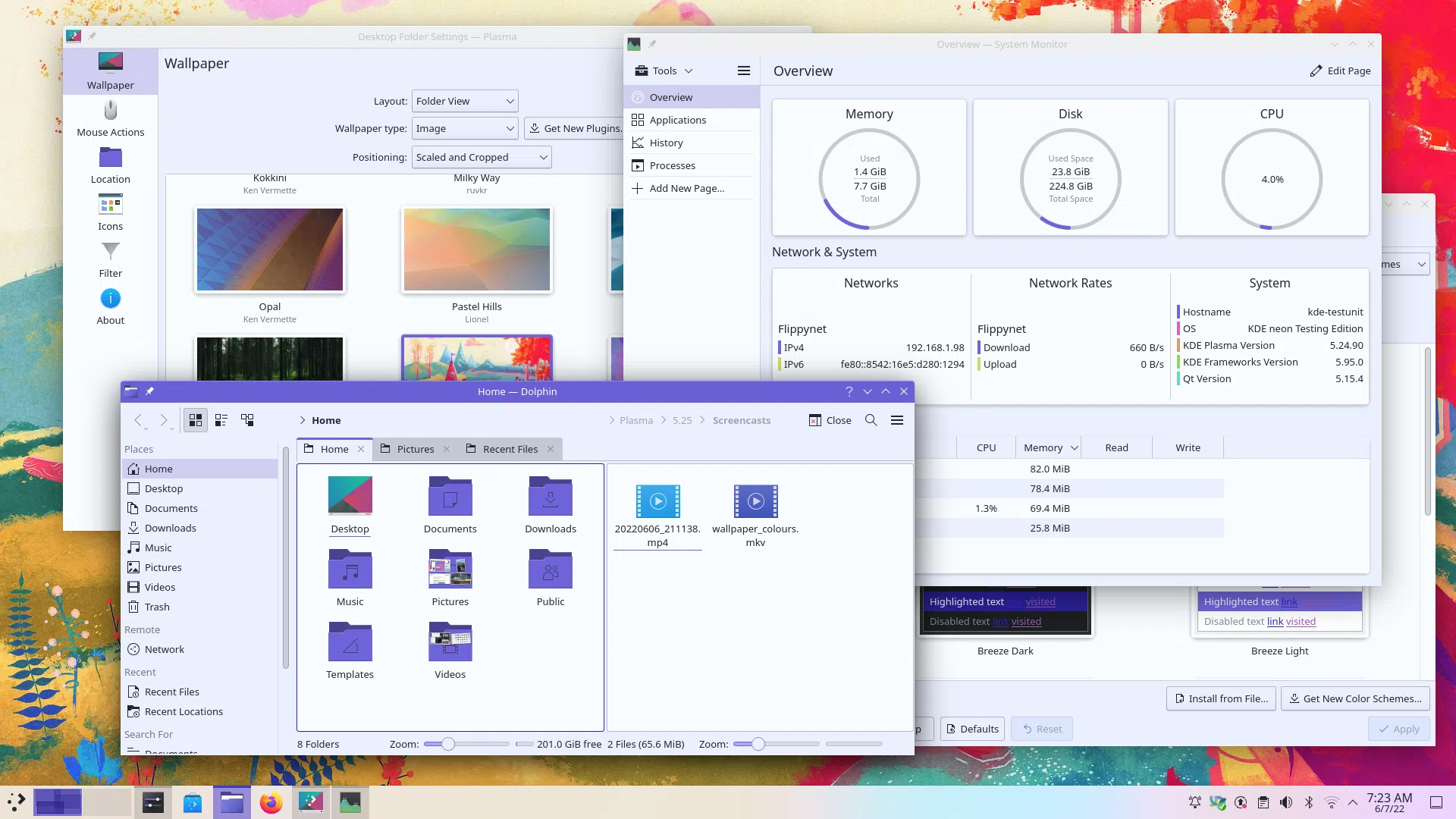
Furthermore, the latest versions of Plasma (starting with 5.24 and especially 5.25) have incorporated significant improvements in touch mode and Wayland session , paving the way for Plasma 6 and a future where hybrid devices and Linux tablets will become increasingly common.
However, it's worth taking the hardware into account: devices like some Microsoft Surface models are still complicated by immature drivers and patched kernels (if you need to fine-tune your kernel ), while Lenovo or more standard convertible laptops tend to be much easier to work with.

Recommended distribution and hardware considerations
Most how-to guides have been tested on Kubuntu and other Ubuntu or Arch-based systems , as these typically have recent Plasma packages and good support for Flatpaks and drivers. Any rolling release distribution with up-to-date repositories (such as KDE Neon or Arch-based distributions) is also a great option if you want to enjoy the latest touch improvements sooner.
In terms of devices, the best results have been obtained with Lenovo x86 tablets and Lenovo Yoga convertibles . These devices typically have good kernel support, functional rotation sensors, and fairly standard hardware, which greatly simplifies things compared to other more "specialized" brands.
Surface devices, while very popular, remain a headache: incomplete drivers, unstable custom kernels, and inconsistent compatibility can ruin the experience. It's possible to get them working, but you have to be prepared to deal with testing, patches, and potential regressions.
In short, if you're just starting out and want to minimize problems, it's much wiser to opt for hardware with proven Linux support before embarking on the touchscreen adventure with Plasma.
Activate and take advantage of KDE Plasma's touch mode
Plasma has incorporated a dedicated touch mode that adapts the entire interface when it detects the device is being used as a tablet. This mode changes the size, spacing, and other UI elements to make them easier to use with your fingers.
On many modern convertibles, the system can automatically activate tablet mode when the keyboard is detached or the screen is rotated 360°. When this gesture is performed, the Plasma session (especially on Wayland) adjusts controls and interaction to make everything more "touchable."
If your device doesn't support this type of automatic detection, you can always manually force touch mode from System Preferences . This allows you to switch between classic desktop mode and tablet mode depending on how you want to use your device at any given time.
In this mode, elements like the Task Manager, the system tray, and the title bar buttons become larger and more spaced out. Context menus are also enlarged, offering more touch area for more precise selection.
Gestures and navigation through workspaces
One of the major improvements in Plasma 5.25 is the redesigned way you navigate between windows and virtual desktops using gestures . The experience becomes much more natural with both touchpads and touchscreens, approaching the feel of some mobile operating systems.
The new Overview effect shows all open windows and virtual desktops at a glance, on a single screen. From there, you can quickly navigate, drag windows between desktops, close them, or launch new applications.
Furthermore, from both the Overview and the launcher, it is possible to search for applications, documents, or even browser tabs using KRunner and the application launcher itself, which greatly speeds up the workflow when combining keyboard, mouse, and touch.
On the touchscreen, you can configure edge-swipe gestures to activate effects like Overview, Desktop Grid, Show Windows, or Show Desktop. The idea is that the animation literally follows the finger, offering a very direct and fluid feel.
These gestures are especially useful in tablet mode, as they replace classic keyboard or mouse actions (such as Alt+Tab) with intuitive movements: swipe from the left edge to switch windows, drag from the bottom to show hidden panels, etc.
Virtual keyboard and improved touch functionality in Plasma 5.10 and later
Starting with Plasma 5.10, significant changes were introduced to make touchscreens more usable, starting with the lock screen and login screen . These included the addition of a virtual keyboard on both screens, facilitating access to the system in tablet mode without the need for a physical keyboard.
Swipe gestures were also implemented on the edges of the touchscreen to switch windows or show auto-hiding panels. For example, the left edge is configured by default to switch between windows, eliminating the need for small title bars or hard-to-touch buttons.
In parallel, the desktop adopted Folder View as its default behavior , displaying icons and shortcuts in a more traditional way. This, combined with drag-and-drop improvements, a denser icon grid, and significantly improved performance, makes using the desktop with your fingers much more enjoyable.
In addition, multimedia controls were added to the lock screen, file copy notifications were improved, and a multitude of small interface adjustments were made for ergonomics , both with a mouse and with touch input.
Installation and configuration of advanced gestures with Touchegg and Touche
To go beyond what Plasma offers out of the box, many users turn to Touchegg, a multi-touch gesture manager for X11 and Wayland that allows you to define advanced actions with two, three, or more fingers. It's especially useful on touchscreens where you want gestures similar to those on a commercial mobile phone or tablet.
On Debian or Ubuntu-based systems, it's common to download the Touchegg AMD64 .deb package from its official GitHub repository. Once installed, you can configure gestures such as a two-finger tap to simulate a right-click on the screen, which is very convenient when you don't have a mouse.
To avoid manually editing configuration files, Touche, a graphical interface for managing Touchegg , is often also installed . The easiest way to do this is through Flathub using Flatpak, which in distributions like Kubuntu 20.04 can be added by following the official quick start guide and enabling its repository.
With Touche, you can visually define custom gestures: horizontal swipes to switch desktops, pinches to show the overview , or specific combinations to launch particular applications. This complements Plasma's native gestures very well and allows you to adapt the system to your workflow.
On-screen keyboard: Onboard and integrated virtual keyboard
Although Plasma already includes its own integrated virtual keyboard for the lock screen and Wayland session , many users on X11 or in mixed configurations still rely on Onboard, a very mature and configurable on-screen keyboard.
On distributions like Kubuntu, simply install it using the corresponding package (for example, `sudo apt install onboard` ) and launch it from the menu. However, it's recommended not to open its configuration panel from the generic shortcut, but rather from the Onboard icon in the system tray, by right-clicking it and accessing the preferences from there.
Within Onboard's options, you can adjust the size, theme, layout, and behavior of the keyboard . One highly valued feature is the floating icon that appears in a corner of the screen when you close the keyboard: it allows you to quickly retrieve it with a tap, without cluttering the taskbar or requiring a permanent icon.
The combination of a virtual keyboard on the lock screen, a Wayland session touch keyboard, and Onboard support in X11 covers virtually any touch usage scenario , from entering passwords to typing longer texts in tablet mode.
Configure Firefox (and other browsers) for touch scrolling
For a truly seamless touch experience, it's essential that browsers respond well to finger scrolling . In the case of Firefox (especially under X11), it's sometimes advisable to explicitly enable advanced input support.
A common way to do this on PAM-based systems is to edit the security environment file and add a variable that forces the use of XInput2 in Firefox. The idea is that, upon login, this variable is defined globally, allowing the browser to better recognize touch events.
If you prefer to avoid complications, you can also use other browsers like Chrome or its derivatives , which in many configurations handle touch scrolling quite smoothly out of the box. In any case, it's worth trying both options and sticking with the one that performs best on your specific device.
Adjust the desktop and panels for more comfortable finger use
Plasma's default interface is primarily designed for mouse and keyboard, but with a few tweaks, it can be transformed into a much more user-friendly environment for handheld use . One of the most straightforward changes is modifying the application launcher.
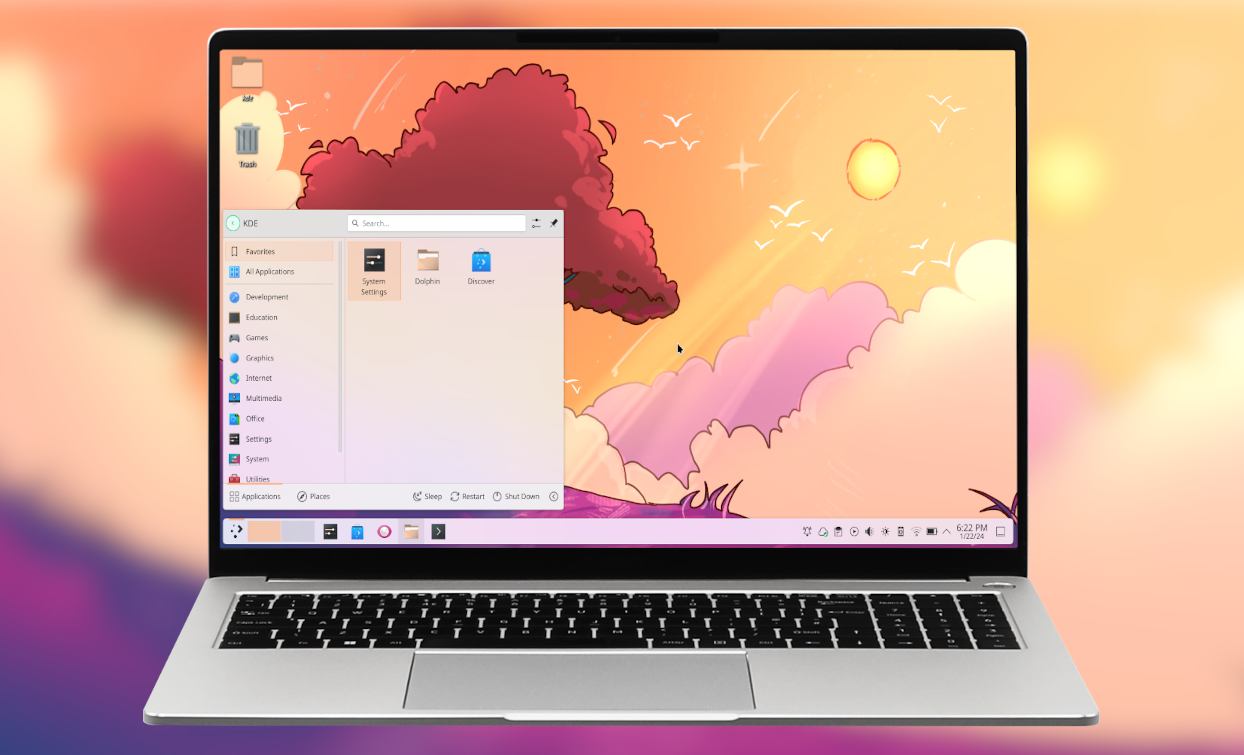
If you right-click the menu button (usually in the bottom left corner) and select "Show alternatives ," you can choose other, larger, touch-friendly launchers, such as the grid-style app panel. These menus display large icons, clear categories, and easy scrolling for finger navigation.
Another important setting is the screen scaling. From the display options in System Preferences, you can increase the scaling factor to values like 125% or 150% , depending on your screen's resolution and size. Many users with high-resolution tablets have found that 150% offers the best balance between available screen space and readability.
The bottom panel can also be customized. By right-clicking on the panel and selecting the edit option, you can increase its height to enlarge the icons and buttons , making it much easier to position the taskbar, system tray, or notification area in touch mode.
In addition to all this, Plasma 5.25 includes new features such as floating panels that add a small margin and elegant animation when a window is maximized. Furthermore, it's possible to move the entire desktop (folders, widgets, and panels) from one monitor to another using the container management window.
Visual customization and color schemes in touch mode
Beyond usability, KDE Plasma has also enhanced the aesthetics to make the desktop more cohesive and adaptable. One of the most striking features is accent color synchronization with the wallpaper , which applies the predominant background color to key interface elements.
With the "background slideshow" feature, the accent color updates automatically whenever the wallpaper changes . You can also adjust the degree of tint applied to the overall color scheme, so it's neither too bold nor so subtle as to go unnoticed.
Another interesting feature is the option to make the title bar or header use the accent color , providing a sense of aesthetic continuity between the active window and the rest of the interface. This, combined with the taller title bars in touch mode, creates a very clear header that's easy to tap to move or close windows.
Color schemes also benefit from animated blending effects when switching between themes , making transitions smoother and more visually appealing. And from the global theme preferences, you can choose which elements to apply (controls, colors, icons, etc.), combining different themes to your liking.
Key new features of Plasma 5.25 related to touchscreens
Plasma 5.25 marked a significant leap towards a more modern desktop, with features that preview some of what we'll see in Plasma 6. Many of these directly affect touch functionality and tablet mode, making it a very relevant update for touchscreen users.
Key new features include a redesigned navigation between windows and desktops , a massive improvement in gesture management, and automatic activation of touch mode when the screen is detached or fully rotated on convertible devices.
Integration with Discover, KDE's software hub, has also been improved. Discover now offers clearer application pages with links to documentation and websites , and even indicates the system resources being accessed. All of this benefits from touch functionality, as the interface is cleaner, larger, and easier to tap.
In parallel, details such as lock and login screens that "shake" when you enter the wrong password were added , providing a quick visual clue. And the KWin script preferences page was rewritten to manage window manager scripts in a more user-friendly way.
Wayland, HiDPI and the future of Plasma in touch devices
A significant part of KDE's work in recent years has been adapting Plasma to Wayland, the new graphics layer that will eventually replace X11 . While there are still scenarios where X11 is recommended for compatibility, touch support is on track to be much better in Wayland.
In Wayland, KWin already offers capabilities that greatly enhance the experience on modern displays, such as the ability to use different scaling on HiDPI monitors and standard screens . This is key when you combine an external monitor with a high-resolution tablet and want the content to look good on both without appearing tiny or gigantic.
The implementation of keyboard layout in Wayland has been reaching parity with X11: global layout change, per virtual desktop, per application or even per window ; indicator in the system tray; and an IPC interface so that other applications can modify the keyboard layout when needed.
As the Plasma Wayland session becomes more established, we will see even more advanced improvements in tablet mode, fluid gestures, touch performance, and security (for example, better isolating the lock screen using technologies like seccomp, as has already been done in parts of the system).
Continuous improvements to Discover, widgets, and KDE applications
KDE's commitment to a cohesive experience is also evident in applications like Discover, Dolphin, Kate/KWrite, Filelight, and numerous Plasma widgets. All of these have received tweaks designed to make the interface cleaner, more responsive, and more comfortable to use , even with your fingers.
Discover, for example, now better handles package updates with multiple architectures (such as when you have Steam and 32-bit and 64-bit versions), displays license information and descriptions of local packages, and corrects the author name for projects hosted in groups, listing "KDE" where appropriate.
In the widgets area, details such as widget headers in Breeze Light and Dark themes have been polished to appear correctly, the margin separator has been made more discreet but visible in edit mode, and placeholder messages now include icons in addition to text.
All of this results in a more "finished" desktop feel, where animations like changing the cover art in the media widget are smooth , draggable items in Kirigami lists move without jerking, and progress notifications display a numerical percentage next to the bar.
By combining all these pieces—automatic touch mode, configurable gestures with Touchegg, functional virtual keyboards, proper scaling, larger panels and menus, improvements to Wayland, and an increasingly polished application ecosystem—it is possible to turn KDE Plasma into a very solid environment for use on tablets and convertibles , capable of competing with commercial solutions as long as you choose the right hardware and dedicate some time to adjusting the configuration to your way of working.

Passionate writer about the world of bytes and technology in general. I love sharing my knowledge through writing, and that's what I'll do on this blog, show you all the most interesting things about gadgets, software, hardware, tech trends, and more. My goal is to help you navigate the digital world in a simple and entertaining way.